Audio Bests
Tired of advertisements cluttering my Google TV experience, I found a way to eliminate them using an alternative launcher.
Unleashing Creativity: My Quest for an App Drawer, Striking Wallpapers, and Endless Personalization
Unlock a New Level of Google TV Experience: Banish Ads and Enhance Customization
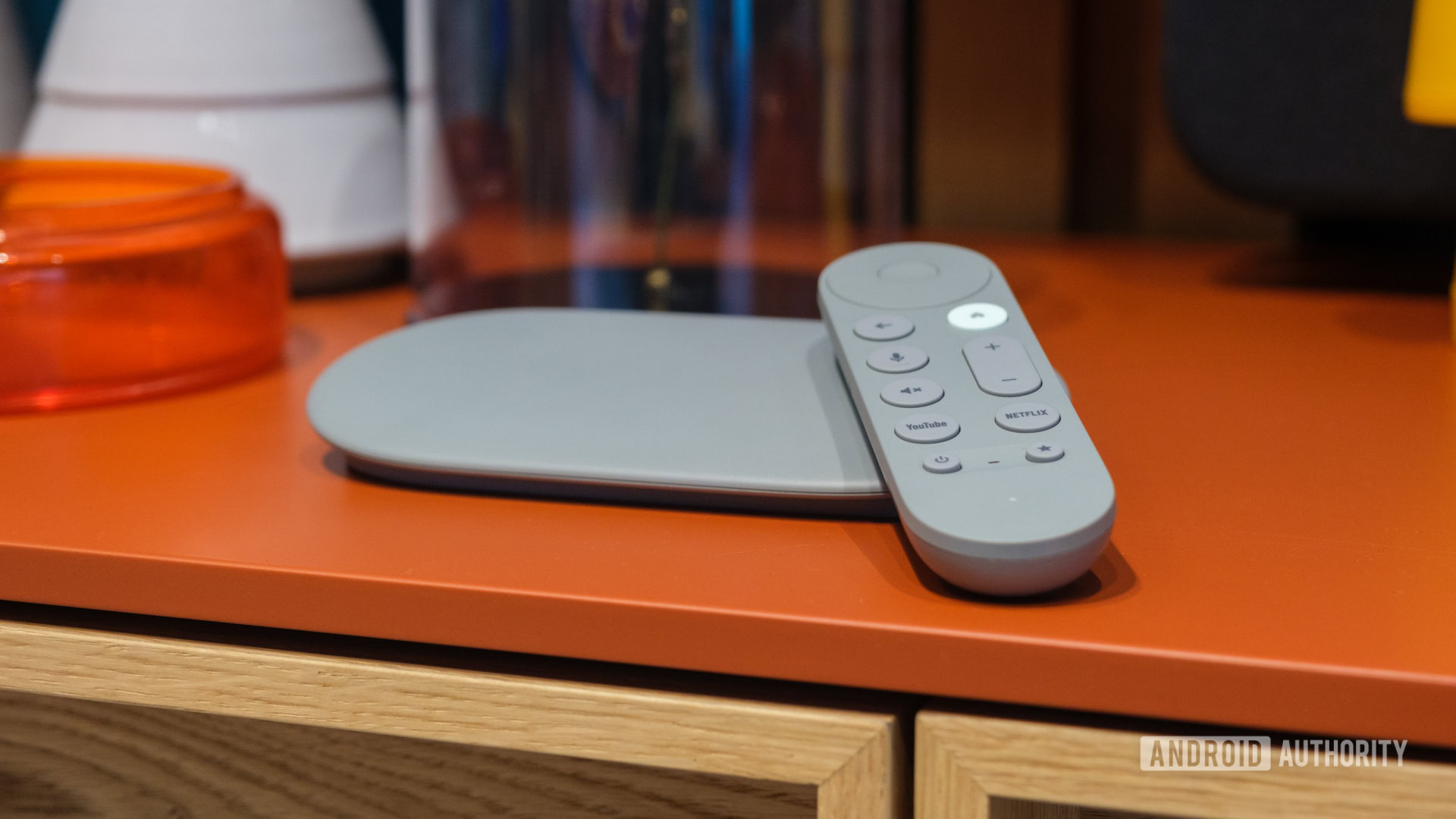
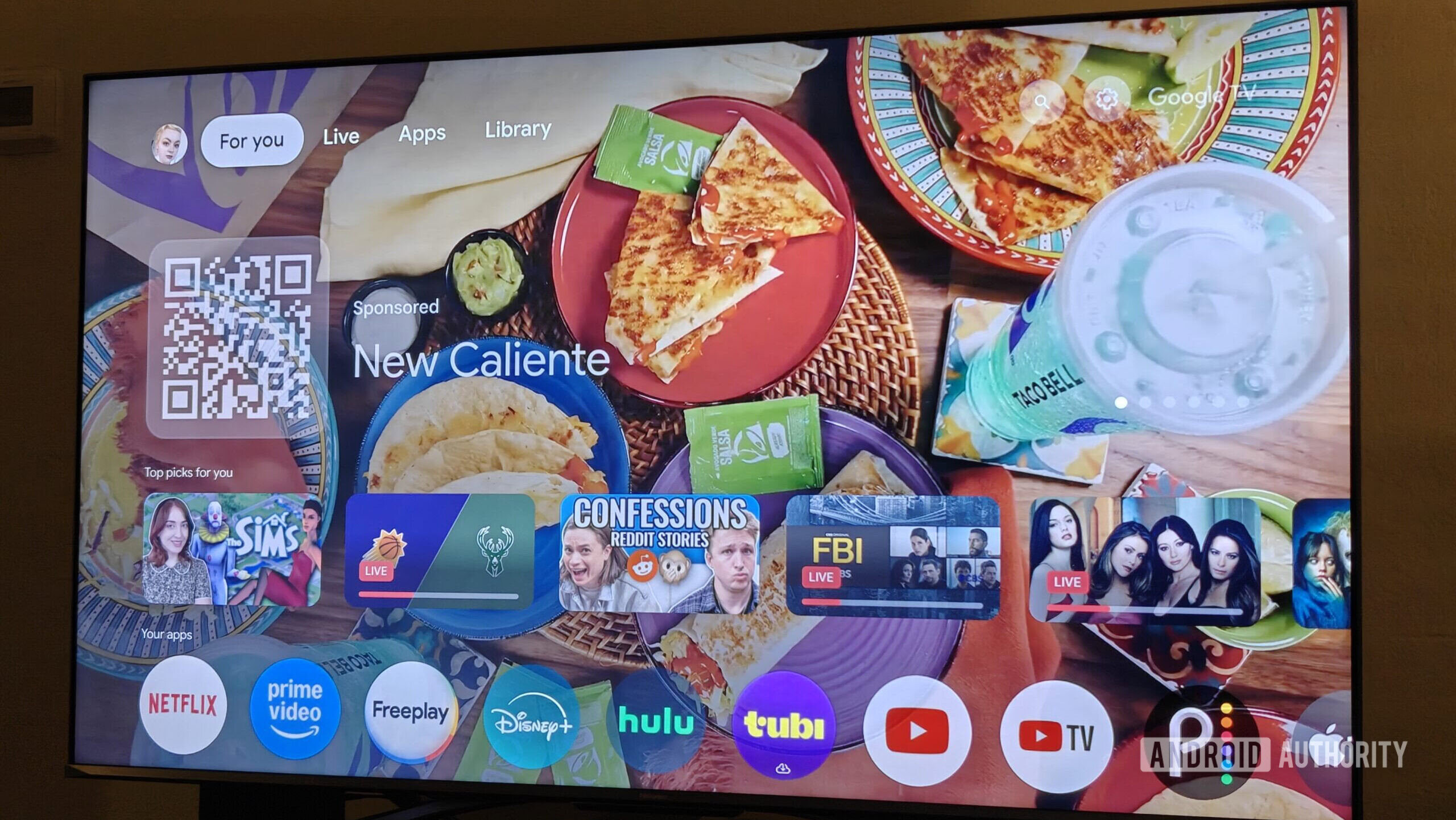
Since the evolution of Android TV into Google TV, I’ve grappled with conflicting emotions about the design of its home screen interface. The sleek, modern aesthetics are appealing, yet the escalating flood of sponsored content feels more like an intrusion. It’s frustrating to see ads populate a space that I’ve paid for after investing in the hardware. The inequity stings: whether you shell out $20 for a budget device or splurge $200 on a top-tier option like the NVIDIA Shield, the constant barrage of ads remains an unpleasant reality—no ad-free options exist, even on high-end televisions that cost upwards of $2,000.
Contrastingly, the Apple TV 4K stands alone in providing an ad-free experience. Just as I was ready to immerse myself in Apple’s ecosystem, I discovered a simple method to free myself from ads on Google TV. Surprisingly, it leverages one of the oldest tricks in the Android playbook: a third-party launcher.
Wave Goodbye to Ads with a Third-Party Launcher
Even though Google no longer uses the Android TV branding, the core operating system remains highly customizable, echoing the flexibility found on Android smartphones. As with mobile devices, you can easily install your preferred launcher designed for Google TV. Among the various options, I found Projectivy Launcher to be the most user-friendly and efficient.
Installing Projectivy Launcher couldn’t be simpler. You can search for it directly in the Google Play Store or install it easily from your smartphone or PC. Once installed, you’ll need to grant a few permissions before it runs smoothly; however, I did have to dive into the settings to enable a feature that bypasses the default Google TV launcher, requiring accessibility permission.
Projectivy offers a wealth of personalization choices without the chaos typically associated with excess options. Unlike the standard setup cluttered with ads and sponsored suggestions, Projectivy boasts a clean interface displaying just your installed apps. The moment you set it as your default launcher, those pesky advertisements vanish, transforming your viewing experience.
Experience Enhanced Performance and Navigation
Beyond eliminating ads, I discovered a noticeable uptick in performance with Projectivy. Most Google TV devices, aside from the powerful NVIDIA Shield, carry underwhelming processing capabilities. In fact, Google recently downgraded its minimum RAM requirement to a meager 1GB. Fortunately, Projectivy makes navigating menus considerably faster, and I no longer endure delays when returning to the home screen of my Onn 4K box.
Customization at Your Fingertips
Though I initially sought Projectivy to escape ads and boost speed, I was pleasantly surprised by the extensive customization that it affords. Whether you prefer a minimalist arrangement with only your most crucial apps or a more condensed interface with numerous apps visible, you can make it happen. The myriad of sliders and toggles match those found in comprehensive launchers for Android smartphones.
Additionally, Projectivy allows for app reordering, hiding of unused applications, and the creation of custom categories, making it easy to tailor your experience. You can even alter the icon sizes, manage spacing, and adjust the corner curvature. By default, the home screen features a rotation of wallpapers sourced from Reddit, but you can easily change the wallpaper provider or opt for a simple solid color if you wish.
Projectivy’s thoughtful design shines through in small yet impactful features. A standout capability lets users conveniently sideload APKs through URLs or apps on their smartphones. There’s also a setting that automatically launches a designated app every time Google TV powers up or wakes from sleep—I’ve set mine to open YouTube automatically. Furthermore, the parental control feature allows you to secure apps with a custom code or combination tailored for specific hours.
Best of all, Projectivy is free to use, with only a few advanced features locked behind a one-time payment that opens up possibilities like custom icon packs and personalized wallpapers. Most desired features remain accessible without spending a dime.
If you're hesitant about embracing a third-party launcher, Google TV does offer an "App-only" mode that minimizes visual clutter. By heading to the gear icon from the home screen and navigating to Settings, you can switch to this mode. However, while it removes some distractions, it still displays a carousel of suggested content and disables system-wide search and Google Assistant—making Projectivy a superior choice for those seeking a seamless, ad-free experience.