Mobile Bests
Understanding One UI Home: A Comprehensive Overview of Samsung's Launcher
Unlock Hidden Gems: Discover the Surprising Features of One UI Home You’ve Been Missing!
Unlock the Full Potential of Your Samsung Device with One UI Home: A Comprehensive Guide
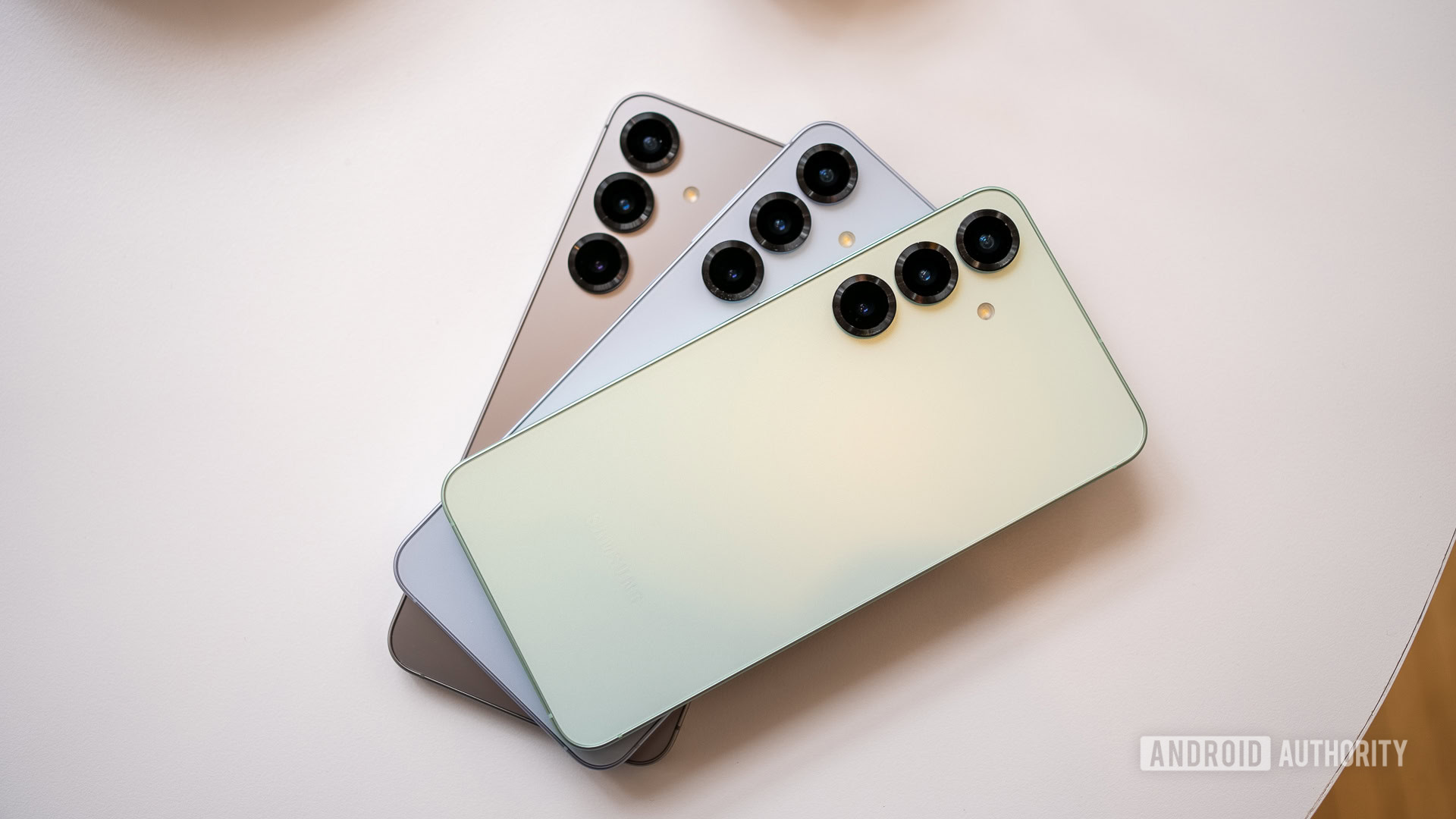
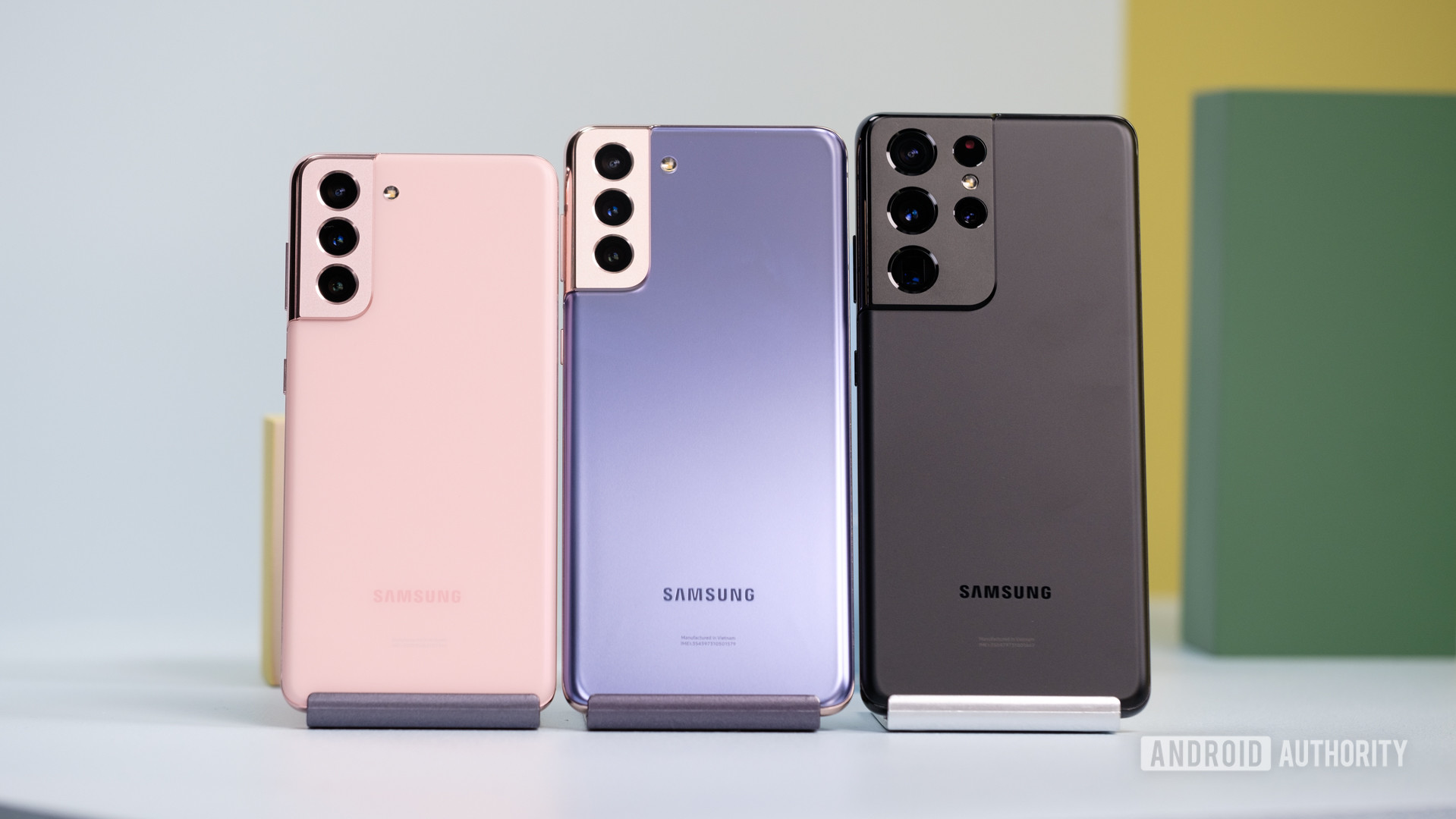
Every Android smartphone or tablet comes equipped with a launcher—either the default one provided by the manufacturer or a third-party option that you may have chosen. This launcher acts as the gateway to customizing your device’s interface. From wallpapers and icons to widgets and themes, a launcher empowers users to tailor their experience. If you've had the pleasure of using a recent Samsung smartphone or tablet, you have undoubtedly encountered One UI Home, even if you weren't fully aware of what it entails. So, what exactly is One UI Home? Let's dive into the details and discover how to make the most of it.
What Is One UI Home?
Samsung has always put its unique spin on the Android user interface. After iterations like TouchWiz and Samsung Experience, the company launched One UI in 2018, built on Android 9 Pie. This new interface was designed to simplify one-handed use for its larger devices and introduced fresh features such as dark mode. Over the years, Samsung has consistently added exciting new functionalities to One UI. The current version, One UI 7—based on Android 15—can be found on the latest Galaxy S25 series, with updates rolling out to many other flagship devices.
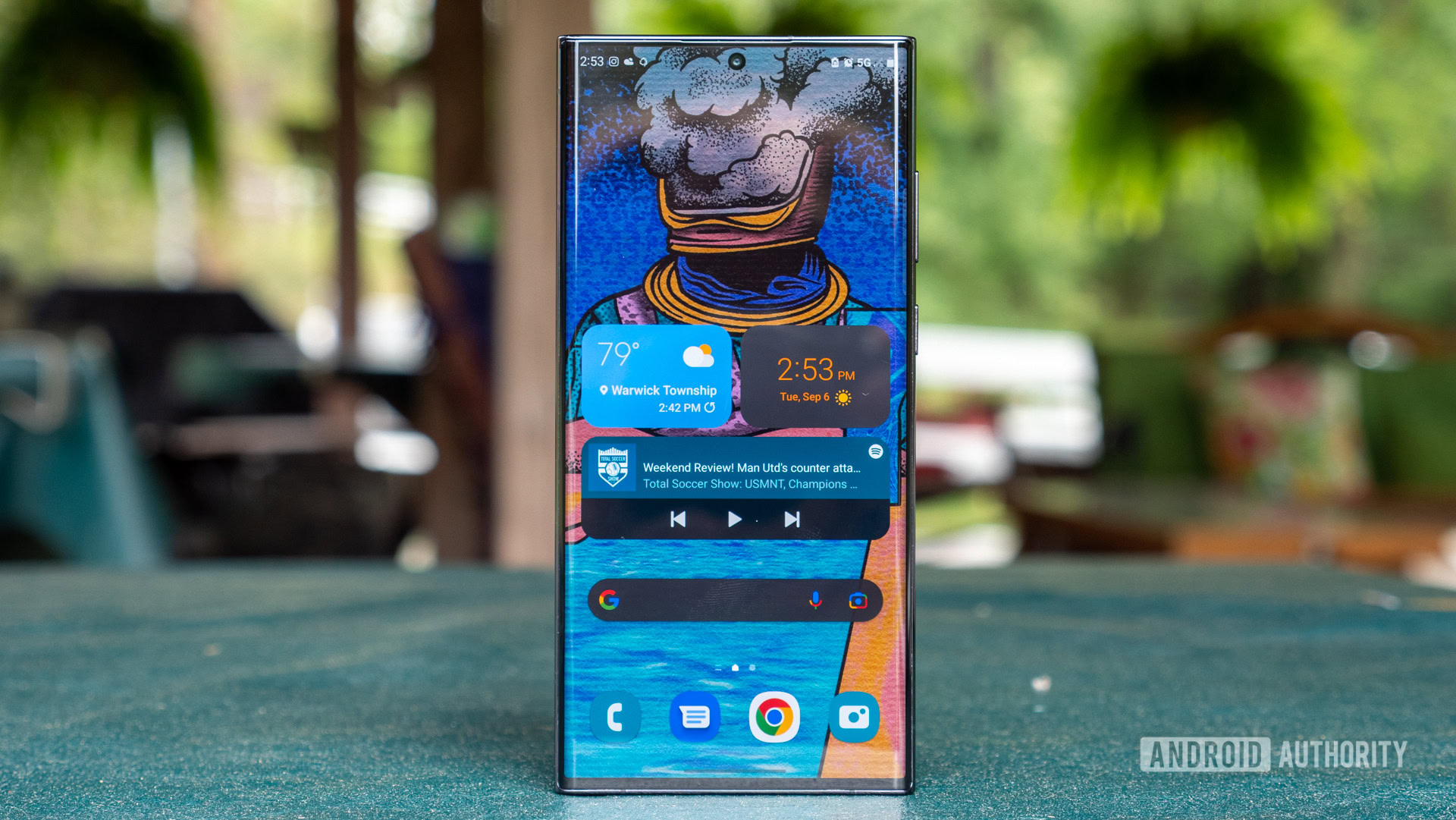
As Samsung's proprietary launcher, One UI Home is a key component of the One UI experience. It lets you reshape various elements of your smartphone’s home screen, including widget placement, notification appearances, and app drawer aesthetics, allowing for a personalized user experience.
How to Get One UI Home
The beauty of One UI Home is that it comes pre-installed on all Samsung devices running One UI. Unfortunately, if you own a non-Samsung Android device, you won’t be able to download One UI Home from the Google Play Store, as it is exclusive to Samsung’s ecosystem.
Exploring Settings and Features
To access the One UI Home settings and take full control over your interface, navigate to Settings > Home screen. If you’re looking for more in-depth permission settings or additional options, head to Settings > Apps > One UI Home.
Among the most beneficial features available in One UI Home is the ability to modify your home screen and app drawer layout. Choose whether to feature an app drawer or showcase all apps directly on the home screen. With a plethora of applications, you might want to configure the grid layout to accommodate more items or widgets seamlessly. Adjusting the app drawer grid is equally simple and allows for a more organized setup.
Another exciting feature is the option to enable Google Discover when you swipe right from your home screen. This feature comes enabled by default, but you can easily switch it to Samsung Free if you prefer that content instead. To turn this option off, simply adjust the settings accordingly.
Customizing Your Home Screen
Adding widgets to your home screen is a breeze! Long-press any empty space on the home screen and select the Widgets button at the bottom. You'll see a variety of options to choose from—everything from Google Photos and Calendar to Netflix and Bixby routines. After selecting your desired widget, you can drag it into place and resize it to fit your layout.
Changing your wallpaper is just as straightforward. Long-press on your home screen again, tap Wallpaper and style, and choose from your existing images or any photo you’ve downloaded. For a dynamic touch, you can enable a dynamic lock screen to rotate wallpapers whenever you wake up your device.
Diving into Themes and Aesthetic Customizations
For those who love a fresh look, One UI Home offers an extensive Galaxy Themes page for additional aesthetic customization. Long-press on the lock screen and tap Themes to browse an array of both free and paid themes. Download a theme that resonates with you to completely transform your user interface.
Troubleshooting Potential Issues with One UI Home
Despite its many advantages, One UI Home isn’t without its challenges. Users often notice that it appears on their phone’s battery usage report, and battery drain is a common complaint. To mitigate this issue, navigate to Settings > Apps > One UI Home > Battery and set it to Optimized or Restricted.
If you encounter sluggish performance or unresponsiveness, a quick fix is to restart your device by holding the power button. Additionally, clearing the app cache can help resolve these issues. Simply go to Settings > Apps > One UI Home > Storage and select both Clear cache and Clear data.
Final Thoughts
One UI Home is a powerful tool that allows Samsung users to tailor their Android experience like never before. From widget placements to theme changes, the possibilities for customization are virtually limitless. While occasional issues may arise, understanding how to navigate your settings and troubleshoot problems ensures a smooth operation. Dive into your settings today and explore the vast customization options available at your fingertips!