How to
A Guide to Streaming Content from Your PC to an Amazon Fire TV
Achieve It in a Flash: Quick Solutions at Your Fingertips!
Unlock the Magic: Stream from Your PC to Your Amazon Fire TV
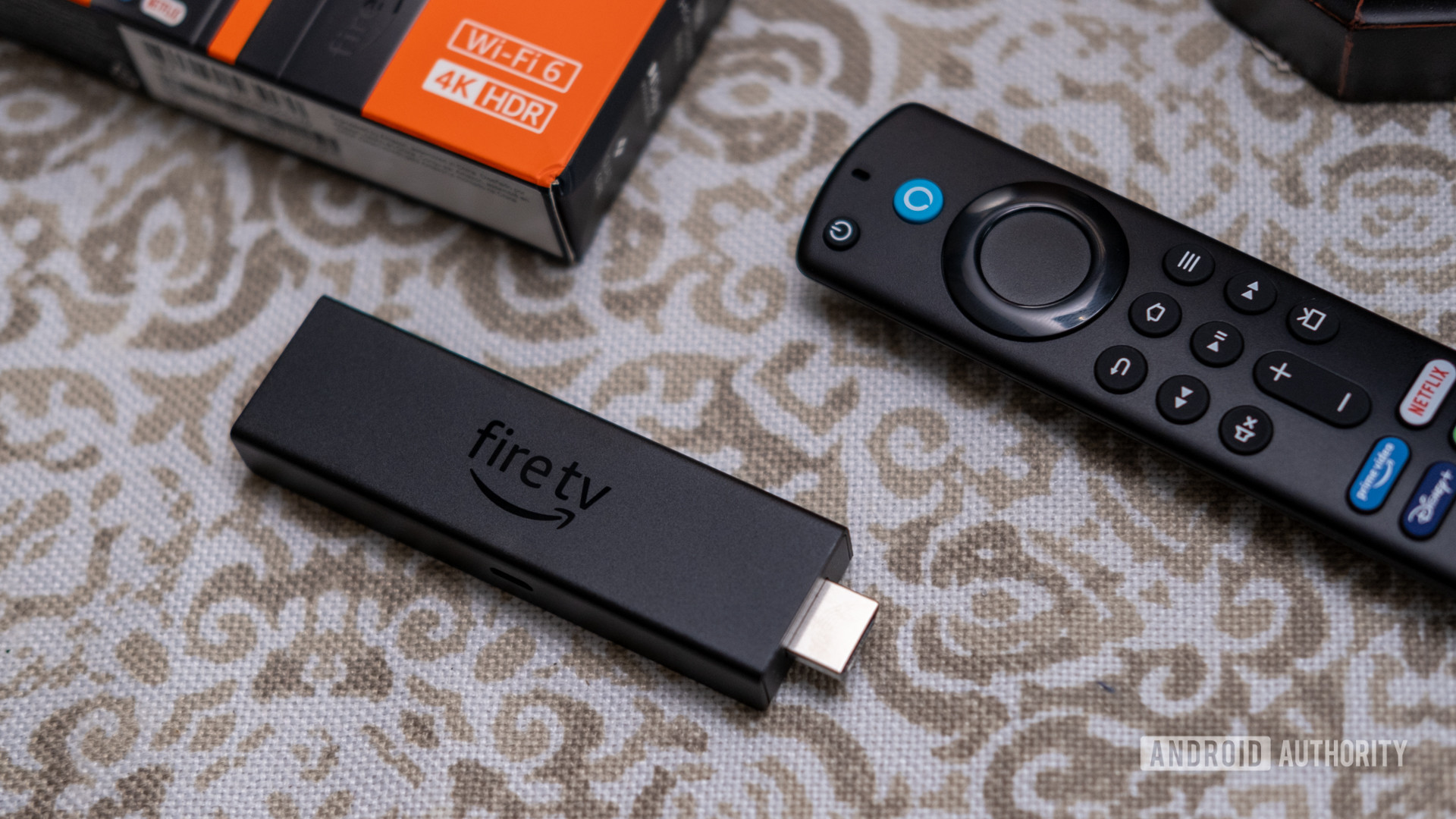
If you’re looking to bring the magic of your PC to your big screen, Amazon Fire TV devices are the perfect bridge. These sleek devices provide you with a vast library of apps and streaming channels, but their capabilities go far beyond entertainment. One of their standout features is the ability to mirror or stream content directly from your PC. This functionality can enhance your viewing experience, whether you’re showcasing a presentation or indulging in your favorite media. Let’s explore how to effortlessly stream from your PC to an Amazon Fire TV.
The Quick Connection Guide
Before diving into streaming, you’ll need to activate the mirroring mode on your Fire TV to establish a link with your PC. It’s a simple process: hold down the Home button on your Fire TV remote until a menu pops up. Select the Mirroring option and keep this menu open. Now, head over to your Windows PC. If you’re using Windows 11, press Windows + K, and from the list, select your Fire TV Stick. Get ready to enjoy the seamless experience!
Stream from Windows 10/11 to Fire TV: The Essentials
Before you initiate the streaming process, there are a couple of prerequisites to ensure everything functions smoothly. Firstly, confirm that both your PC and Fire TV are connected to the same Wi-Fi network. Then, follow these easy steps:
- Power on your Amazon Fire TV device and access the Settings app.
- Select “Display & Sounds” from the menu.
- Click on “Enable Display Mirroring” to activate the feature.
Now, for Windows 10 users, swipe in from the right edge of the screen to access the Notifications menu, then hit “Connect.” Your Fire TV should appear if both devices are connected to the same network—just click on it to connect. Enjoy the show! If you’re using Windows 11, press Windows + K or click on the network, sound, and battery icon at the bottom right to find the Cast option. Select your Fire TV device and hit the connect button to get started.
Understanding Projection Modes
Your Fire TV supports various projection modes, each tailored for specific needs:
- Duplicate: The basic mode that mirrors everything displayed on your PC. Perfect for those moments when sharing is key, as it automatically silences notifications to minimize distractions.
- Extended: This option treats Fire TV and your TV as a second screen. It’s fantastic for more complex tasks where you need multiple displays.
- Second screen only: Use the Fire TV as your primary output while keeping your PC as a secondary display.
Exiting mirroring is as simple as pressing any button on the Fire TV remote, but tread carefully—an accidental press could disrupt your streaming session, forcing you to reconnect. If you face any remote issues, don’t worry, as there are solutions available to troubleshoot them.
Mac to Fire TV Streaming: A Different Approach
For Mac users, the process differs slightly as there's no native way to mirror the screen directly on Fire TV. Instead, you can utilize specific applications that support AirPlay for ensuring your content reaches the big screen. A popular choice is the AirPlayMirror Receiver app. Here’s how you can get started:
- Search for "AirPlay" in the Fire TV app store, and download the AirPlay Mirror Receiver app.
- Keep the app running on your Fire TV for seamless streaming.
- On your Mac, navigate to System Preferences and select Displays.
- Enable “Show mirroring options in the menu when available,” and the AirPlay icon will pop up in your menu bar. Choose your Fire TV device from the list to start mirroring.
This app offers a 15-minute trial, allowing you to assess its effectiveness before committing to a purchase price of $1.49.
Using Plex: Your Media Hub
Plex takes streaming convenience to another level by allowing you to access media stored on your PC across various devices, including your Amazon Fire TV. Here’s how to set it up:
- Download the Plex app on your Fire TV through the Search function.
- Log in with your Plex account and ensure that your PC, which serves as the media server, remains powered on.
- Once set up, your media library will be at your fingertips on your Fire TV.
While Plex’s free version is robust, consider the Plex Pass subscription for enhanced features like live TV access, offline viewing, and more.
Frequently Asked Questions
Though there’s no standard method for streaming directly from PC to Fire TV, utilizing Windows or AirPlay-compatible apps on Macs can simplify the process. Expect slight delays during streaming, especially when using wireless connections. Also, unless you opt for third-party applications, streaming via Windows is free.
Furthermore, the flexibility of streaming extends beyond PCs; you can use Android or iOS devices too. Comprehensive guides are available to help you set those up as well.