How to
Ways to link your Chromebook with a television
Experience the thrill of epic cinema or immersive gaming in stunning big-screen glory!
Transforming Your Viewing Experience: Connecting Your Chromebook to a TV
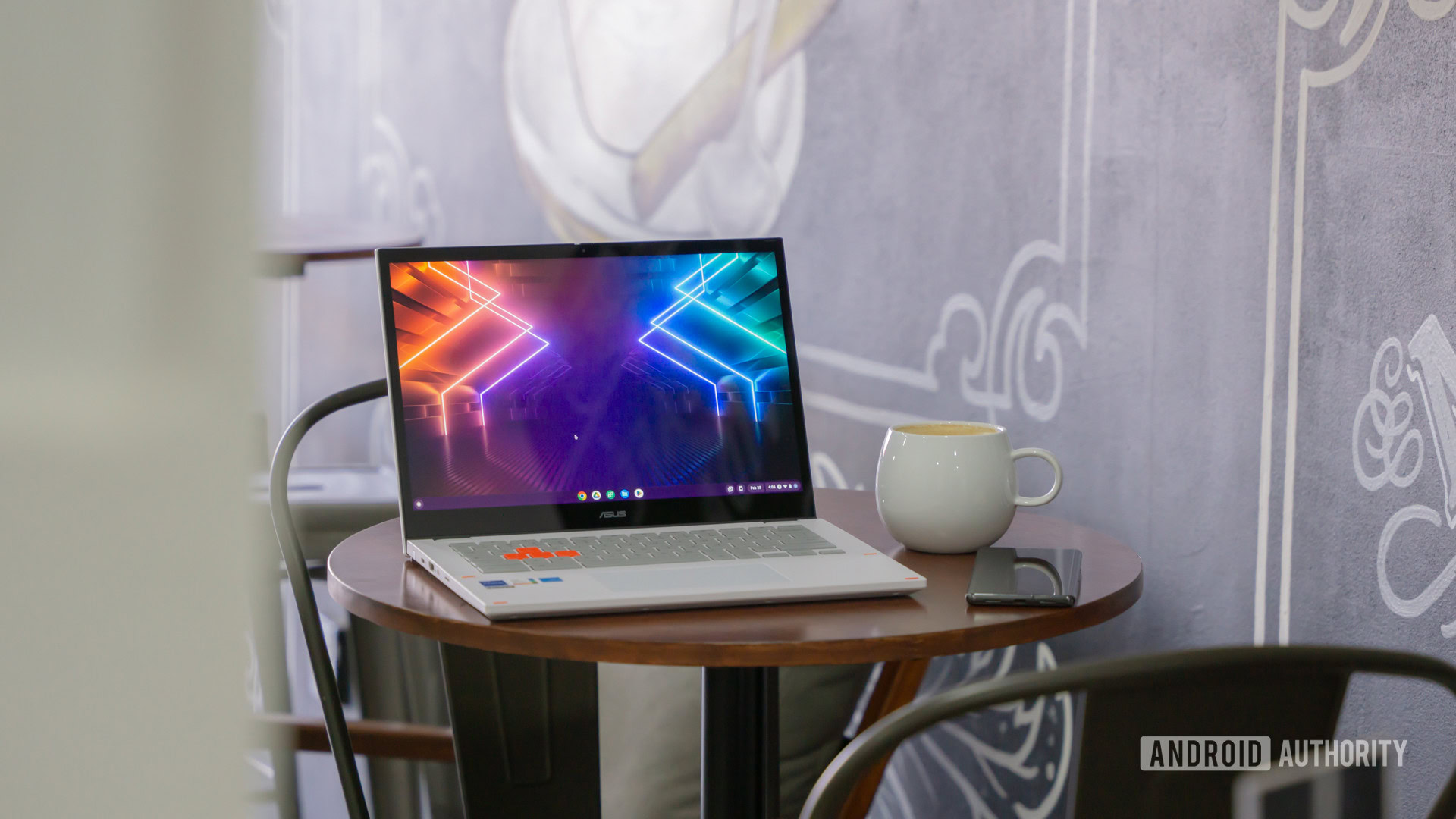
In today's digital age, Chromebooks have gained immense popularity due to their portable and lightweight nature. Many users rely heavily on these devices for their online activities. However, with their smaller screens, there comes a time when you might crave a bigger visual experience, like watching movies, giving presentations, or browsing photos on a larger display. Fortunately, connecting your Chromebook to a TV is a straightforward process! Let’s explore the various methods to do just that.
Wired Connections: The HDMI Way
The most reliable method to connect your Chromebook to a TV is through an HDMI cable. Most modern TVs have HDMI ports, making this a convenient choice. Before diving in, check if your Chromebook includes an HDMI port. If it does, all you need is a typical HDMI cable to establish a connection.
Should your Chromebook lack an HDMI port, don’t fret! You can purchase a USB-C hub equipped with an HDMI output or a USB-C to HDMI cable. Some advanced TVs and monitors even support video inputs directly through USB-C, though this feature remains relatively rare. Here's a simple step-by-step guide for connecting via HDMI:
Wireless Wonders: Cast Your Screen
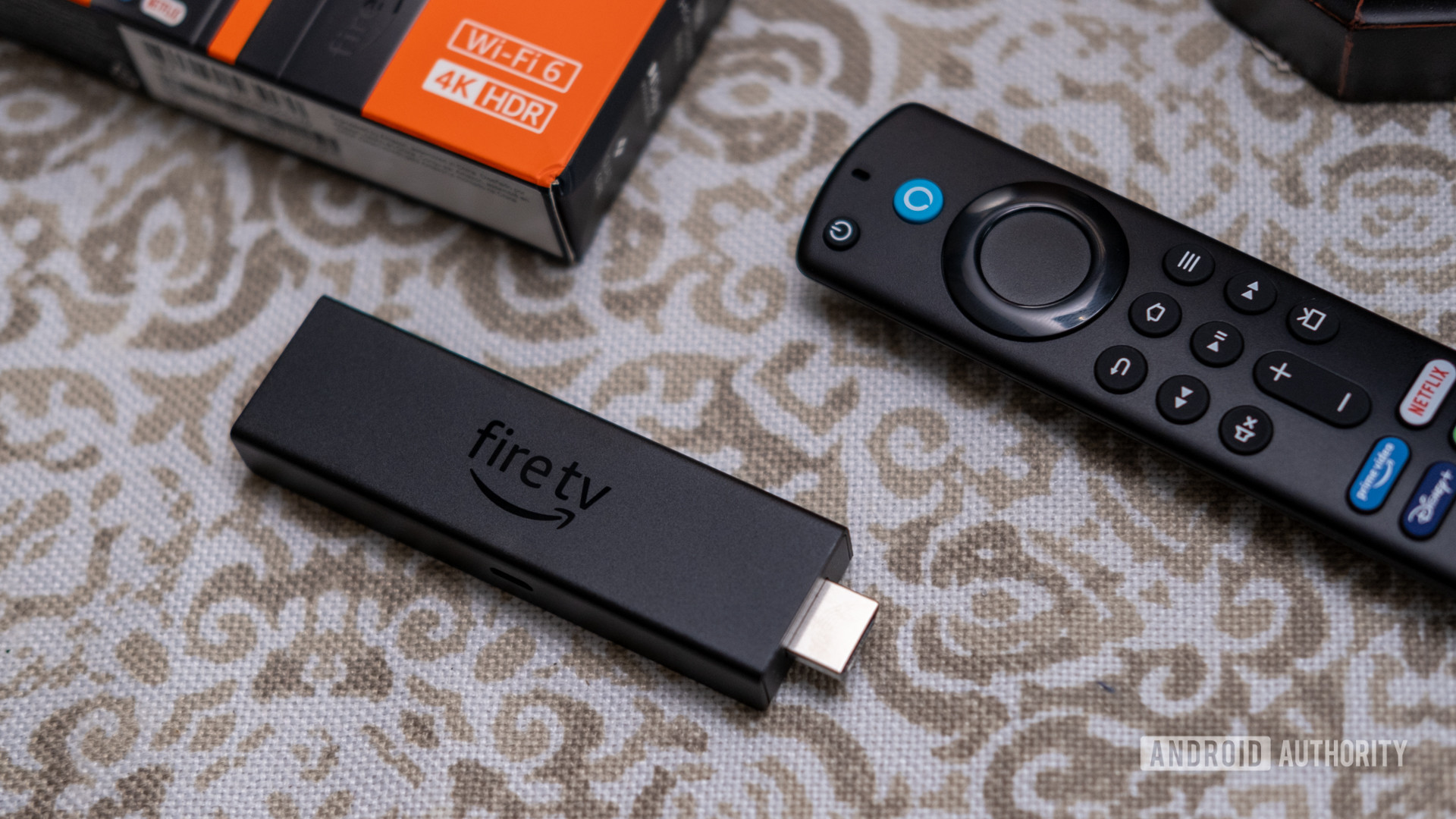
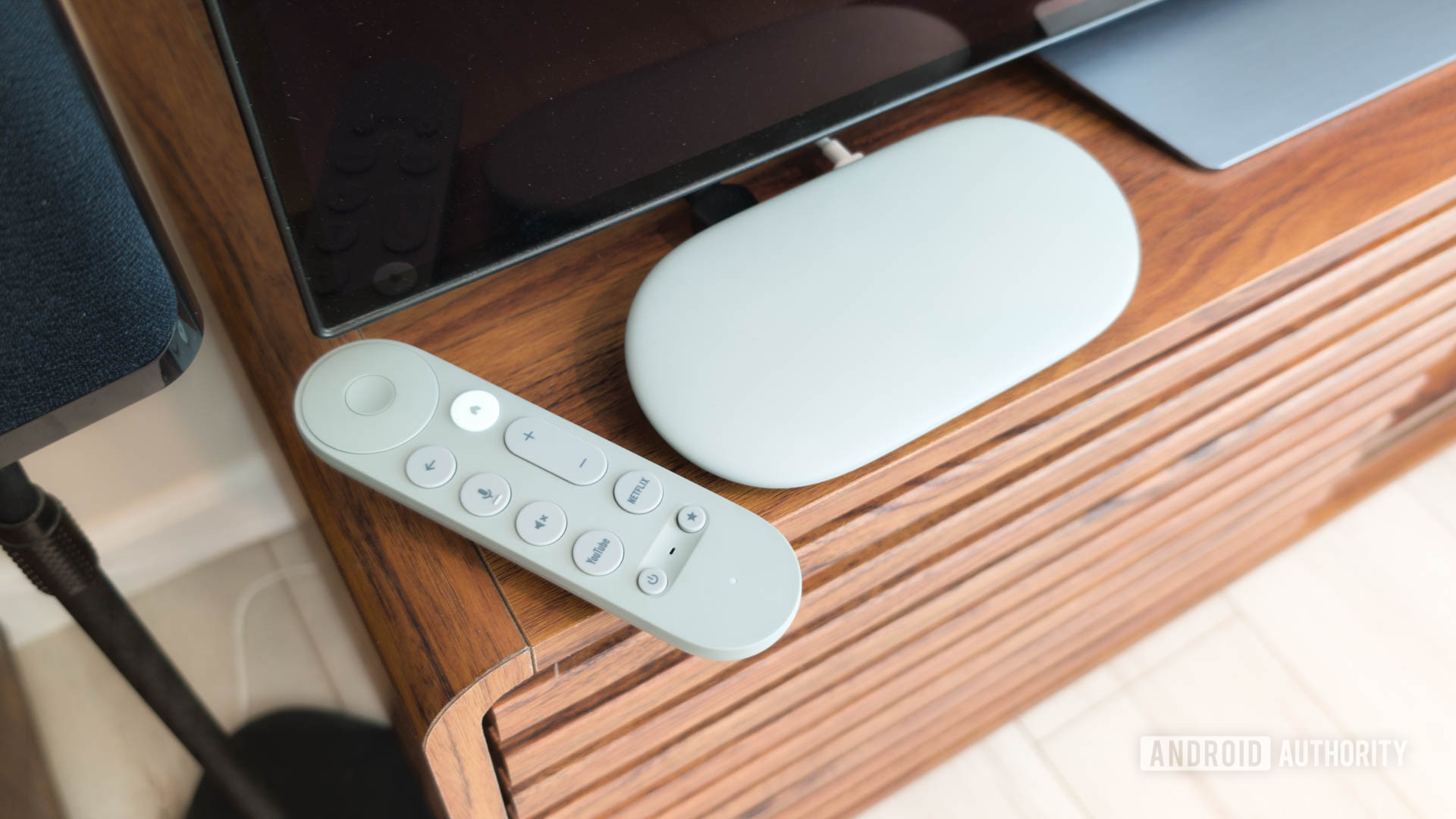
If you prefer a wireless approach or lack an HDMI cable, casting your Chromebook screen to your TV is an excellent alternative, albeit slightly less stable. To make this work, you will either need a Google Cast device, such as Chromecast or an Android TV, or an Amazon Fire TV. Ensure both your Chromebook and casting device are linked to the same Wi-Fi network for a seamless connection.
Casting with Chromecast: A Step-by-Step
Using Google Cast is an efficient way to connect your Chromebook wirelessly. Here’s how to do it:
To stop casting, simply click on the time again, select the casting option, and hit Stop. Additionally, this process can be executed from within the Chrome browser. Open Chrome, click on the three dots in the upper right corner, go to Cast, and follow the prompts to select your device.
Using Fire TV: A Few Extra Steps
If you're more inclined to use an Amazon Fire TV, the process is similar yet requires a few additional steps to activate screen mirroring:
FAQs: Common Questions and Answers
Please note: The procedure for connecting to a Roku is akin to using Fire TV. Just toggle on the screen mirroring option in your Roku settings and select it from the casting settings on your Chromebook. However, it's important to mention that Roku devices can only mirror certain supported video websites, limiting their functionality compared to others.
For an optimal wireless connection, Google Cast with Chromecast generally offers the most reliable experience for pairing with your Chromebook. Direct USB screen mirroring from Chromebook to TV isn't typically possible unless you are utilizing a USB-C to HDMI cable or hub. Some newer TVs are beginning to support video input directly over USB-C, but such instances remain rare.
All in all, whether you choose the wired or wireless route, connecting your Chromebook to a television can significantly enhance your online experience, making it more enjoyable and immersive. Embrace the larger screen and enjoy what modern technology has to offer!