How to
Activating Dark Mode on Chrome OS: A Step-by-Step Guide
Embrace the Enigmatic: Unleash Your Bold Dark Vibe!
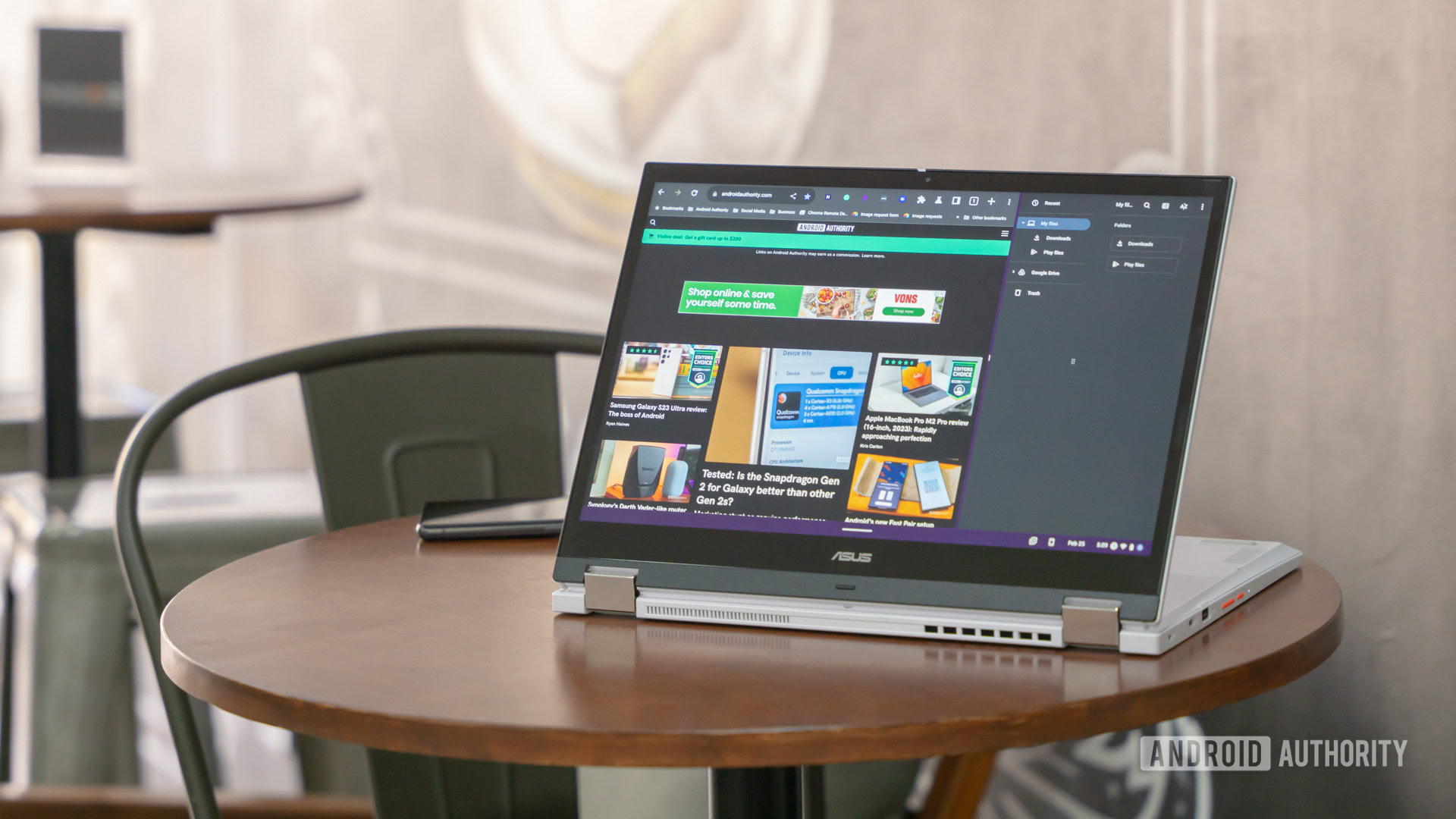
Embrace the Night: A Guide to Activating Dark Mode on Chrome OS
Have you ever found yourself squinting at your screen during those late-night study sessions or binge-watching your favorite show? If you’re a proud user of Chrome OS, you’ll be delighted to know that Google has added a much-anticipated feature: Dark Mode! This sleek, eye-friendly setting transforms your screen experience, ensuring you can work or unwind without straining your eyes. Let’s dive into the simple steps to activate Dark Mode on your Chromebook, so you can give your peepers a well-deserved break!
How to Activate Dark Mode on Chrome OS
Enabling Dark Mode on your Chromebook might seem daunting at first, but fear not! Google has made it straightforward, albeit with a couple of tucked-away steps. Here’s your step-by-step guide:
First things first, you need to access the Settings app. You can find this by clicking on the time display in the bottom right corner of your screen to reveal the Quick Settings menu. From there, click on the gear icon to open Settings.
Next, look for the “Wallpaper and style” option on the left-hand menu. This section houses the theme settings. Click on it, then select “Set your wallpaper & style.”
Once you’re in the Wallpaper section, you’ll spot a subsection called Theme. Here lies the power to customize your Chromebook experience. You can choose between Light, Dark, or Auto. To go full-on Night Owl, select Dark! If you prefer a dynamic experience, picking Auto will automatically adjust the theme based on your geographical location, so it becomes dark only when the sun goes down. However, keep in mind that for this feature to work, you’ll need to share your location with Google, which may be a concern for privacy-conscious users.
Transforming Your Chrome Browser to Dark Mode
Open Chrome and locate the three-dot menu in the upper right corner of your browser window. Click on this menu, then select Settings.
Navigate to the Appearance section within the settings, where you’ll see options to change the display mode. Here, you can select Light, Dark, or Device Default. By choosing Device Default, Chrome will mimic the theme you set on your Chromebook, unifying your viewing experience.
However, bear in mind that not every website has been optimized for dark mode. In many cases, you might still encounter some sites that shine bright in their light counterparts, frustrating your intentions for a seamless dark experience. If you want to give those websites a darker demeanor, there is a workaround using a Chrome Flag:
Open Chrome again and type “chrome://flags” into the URL bar. This will lead you to a treasure trove of experimental features. From there, search for “Auto Dark Mode for Web Contents.” Click on the drop-down menu beside it and select “Enabled.” This should help in enforcing dark mode across most websites you visit.
What to Expect from Chrome OS Dark Mode
As you navigate the nocturnal world of Dark Mode, keep in mind that the feature generally showcases dark greys rather than pure black. So, if you are using an OLED screen, you might not experience significant battery savings. However, it’s still a delightful change that softens the brightness of your display, particularly during low-light circumstances.
If you ever want to switch back to the classic bright interface, it’s simple! Just head back to Settings > Wallpaper and style > Set your wallpaper & style, and select Light or Auto, depending on your preference.
In conclusion, activating dark mode on Chrome OS not only enhances your user experience but also makes long hours spent in front of the screen much more enjoyable. Enjoy your newfound nighttime browsing comfort and remember: a darker theme is just a few clicks away!