How to
A Guide to Turning Off Chromecast and Stopping Screen Casting on Android Devices
Ready to Reclaim Your Screen? Here's How to Disconnect Your Chromecast in a Flash!
Mastering Your Chromecast: How to Control Casting and Power Off Your Device
Chromecast devices offer a fantastic solution for streaming content from your smartphone to your television. However, there are moments when you may wish to pause the streaming or completely deactivate the device. Can you successfully turn off your Chromecast? In this guide, we'll explore how to halt casting mid-stream and how to disable the device when it’s not in use, ensuring you have full control over your streaming experience.
The Simple Solution
If your goal is to stop casting to your Chromecast, there are quick and straightforward methods available. First, the easiest way is to tap the Cast icon in your current app. From there:
- Open the app you are using to cast (like YouTube).
- Locate the Cast icon and tap it.
- Find the three-dot menu next to your Chromecast device.
- Select 'Disconnect from TV' to stop the stream.
Alternatively, you can use the Google Home app to manage your casting effortlessly:
- Open the Google Home application.
- Navigate to the Devices tab.
- Select the Chromecast device you wish to stop casting to.
- Tap 'Stop Casting' to end your session immediately.
Both methods are effective and will allow you to resume streaming from the app you were using without losing your place.
Powering Down Your Chromecast
Unlike some devices that come equipped with a power switch, turning off a regular Chromecast isn't particularly straightforward. You can't simply toggle it off, but there are a couple of practical solutions:
- 1. Unplugging the Device: The most direct method of cutting power is to unplug it from the power outlet entirely. However, if you prefer convenience, consider investing in a smart plug. This will enable you to turn the Chromecast off (and on) right from your smartphone or smart speaker. 2. Managing Google TV:If you're utilizing a Chromecast with Google TV, you can deactivate the Google TV interface while still keeping the casting functionality alive. Here’s how:Open the Google Home app.
- Select your Chromecast or Google TV device.
- This will effectively disable the Google TV UI, but casting will still be available.
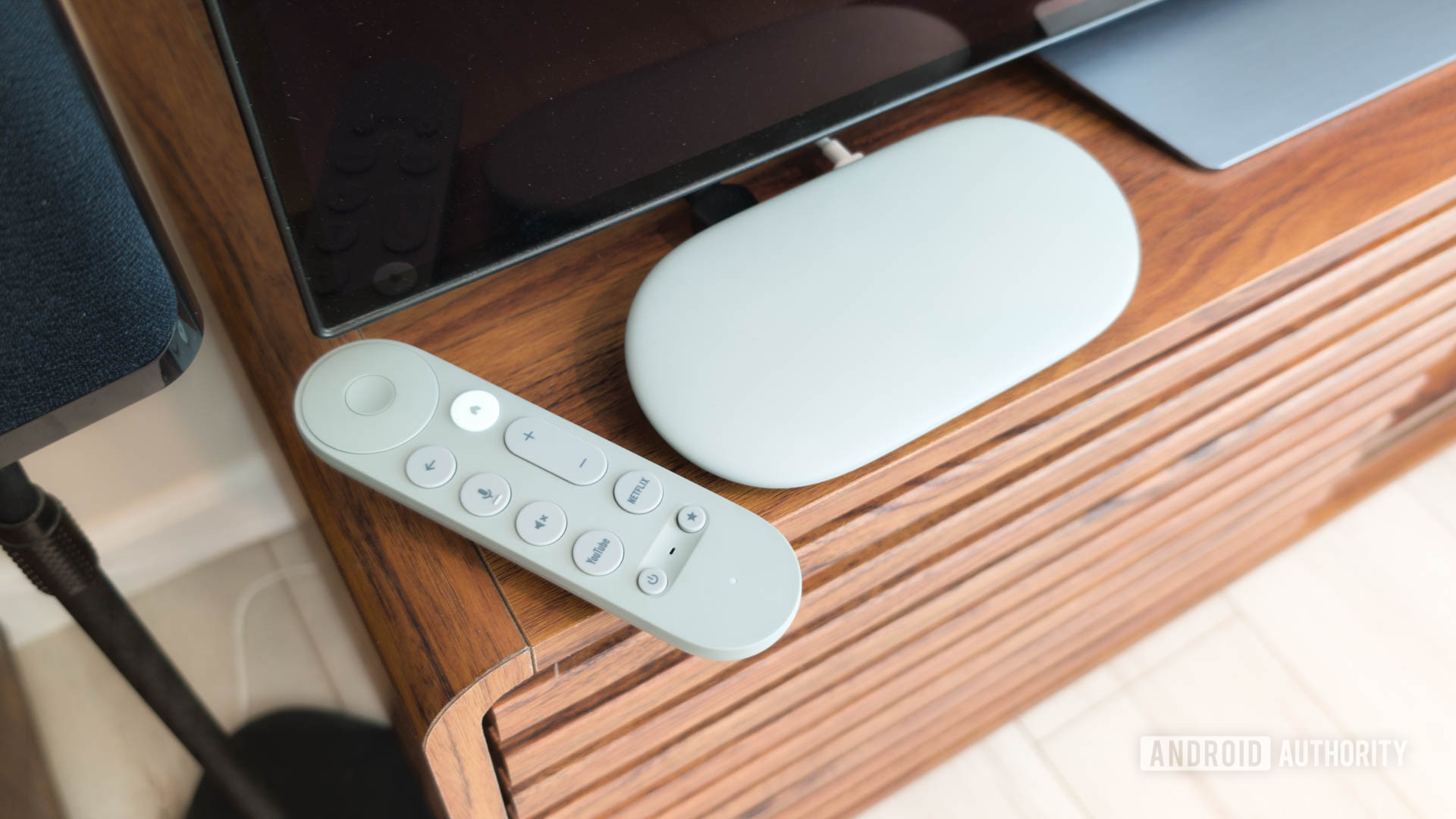
You can also use your Google TV remote to press the power button to turn off the interface.
Disabling Chromecast Features
If your intention is to disable Chromecast functionalities, follow these steps to ensure that no one else can control your casting:
- Launch the Google Home app.
- Select your Chromecast device.
- Hit the settings gear icon.
- Select 'Recognition & sharing.'
- Toggle off the option that says 'Let others control your cast media.' For Chromecast with Google TV users, select 'Never.'
You can also stop notifications related to casting on your phone:
- Open the Settings app on your device.
- Go to Google services and preferences (this section is labeled with your name).
- Tap on the 'All services' tab.
- Find 'Cast options' and disable 'Media controls for Cast devices.'
Frequently Asked Questions
Many users wonder whether it's possible to turn off a Chromecast. The reality is that disconnecting the power supply is the only way to completely switch it off. For those with Chromecast with Google TV, you can turn off just the interface while keeping the device active for casting. On the other hand, your Chromecast will remain operational as long as it is plugged in, even if you disconnect the HDMI.
Using a smart plug provides an innovative solution for those who find unplugging the device tedious. It allows you to control the Chromecast power from the comfort of your phone, making life a lot easier.
Conclusion
With just a few clicks, you can manage your Chromecast device, whether halting a stream mid-way or entirely powering down the unit. By mastering these methods, you can ensure your Chromecast operates exactly how and when you want it to, providing a seamless streaming experience. So, embrace the power of control with your Chromecast, and enjoy hassle-free casting any time!