How to
A Guide to Streaming VLC Player Content to Your Television with Chromecast
Easily Stream Your VLC Videos to the Big Screen with Just a Simple Tap!
Effortlessly Stream with VLC Media Player and Chromecast
If you're looking to elevate your viewing or listening experience, look no further than VLC Media Player. Compatible with Android, Windows PC, and Apple Mac, this versatile media player allows you to seamlessly cast videos and audio to any device that supports Chromecast. Whether you want to watch your favorite movies on a gigantic TV or blast some tunes through smart speakers, the possibilities are endless. This guide will walk you through the simple steps to cast VLC to your smart TV or speaker using Chromecast.
Your Quick Start Guide to Casting VLC
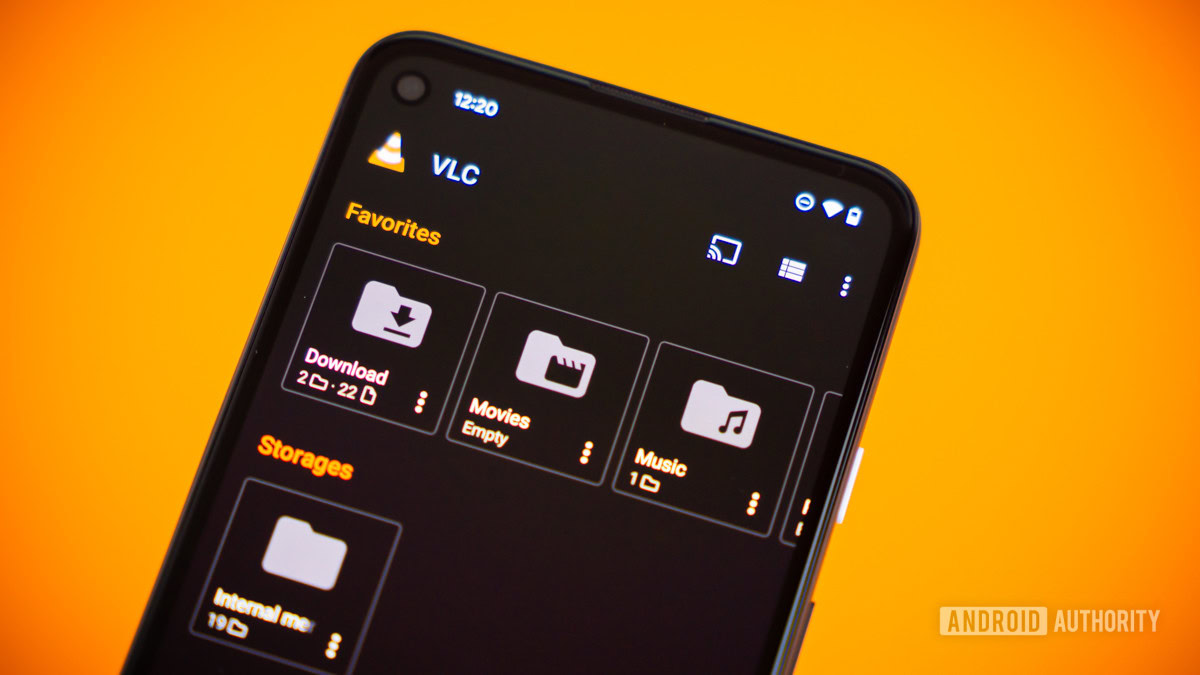
To kick things off, casting VLC content to your TV via Chromecast is straightforward. Start by launching the VLC application on your device. Dive into your media library and select the audio or video file you wish to enjoy. For those using the desktop version, head over to the menu bar and choose Playback > Renderer. Here, you simply select your Chromecast device, and voila! Your media should begin streaming immediately on your chosen display. If you're on an Android device, just tap the Google Cast icon located at the top right corner of the app, pick your Chromecast-enabled device, and enjoy.
How to Cast VLC from Your Computer
For users who prefer a big screen experience from their Windows PC or Mac, casting through VLC works like a charm. Follow these easy steps:
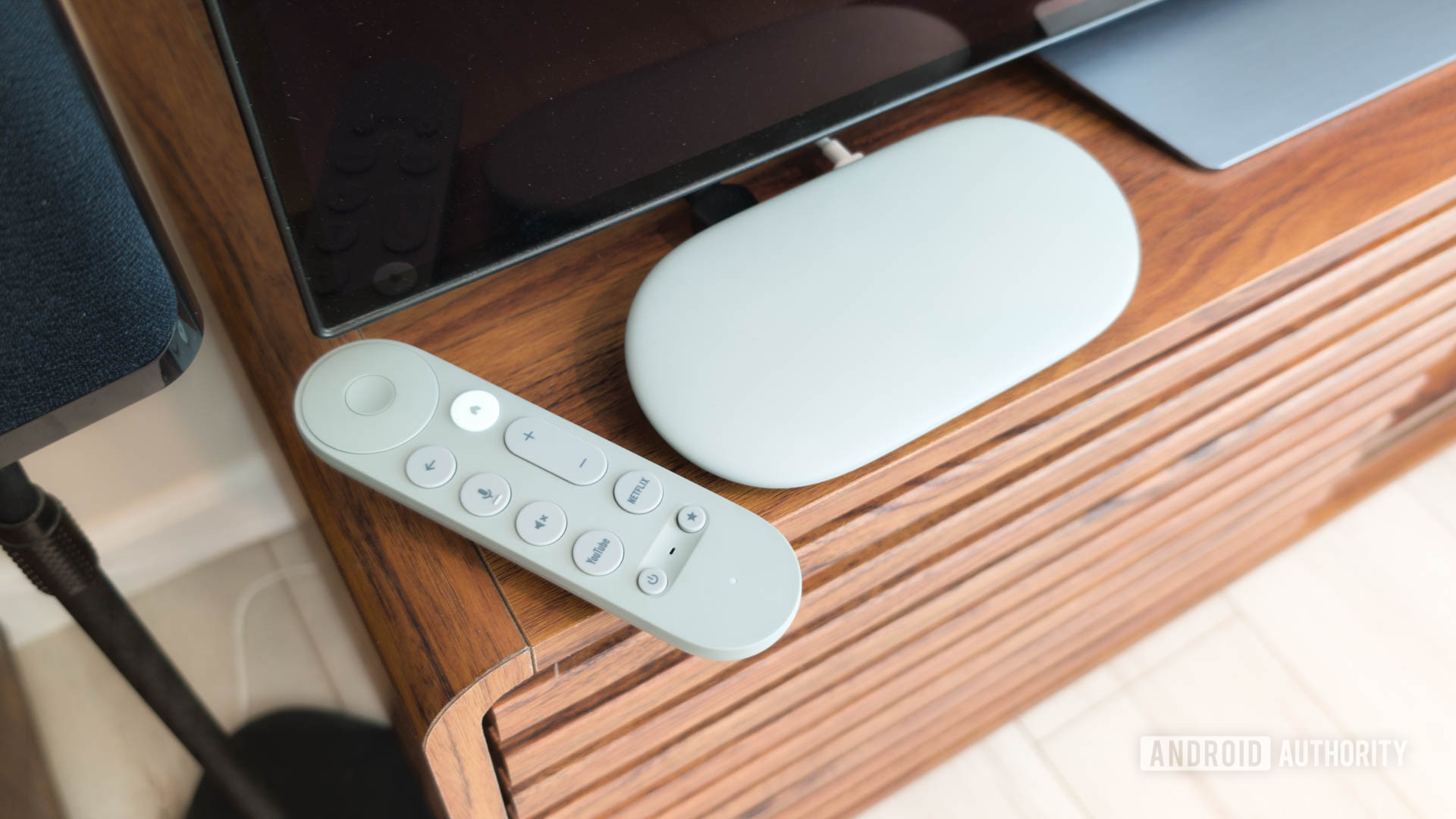
While doing this, you may encounter a prompt warning about site security. Rest assured, VLC is a reliable platform for casting. It's essential that both your computer and the Chromecast smart device are connected to the same Wi-Fi network; otherwise, you'll miss out on available casting options. Also, ensure your TV has Chromecast integration or is connected to a Chromecast dongle.
How to Cast VLC from the Android App
For users with smartphones, casting media using the VLC app is a walk in the park. Here’s how you can make the most out of it:
If you encounter any issues with Chromecast, don’t fret; solutions are available. After initiating the stream, you can easily turn your smartphone into a remote control. VLC offers a suite of tools to enhance your experience, including subtitle selection, audio adjustments, and even playback speed controls. When you're done watching, just tap the Chromecast icon again and select Disconnect to stop the casting.
Frequently Asked Questions
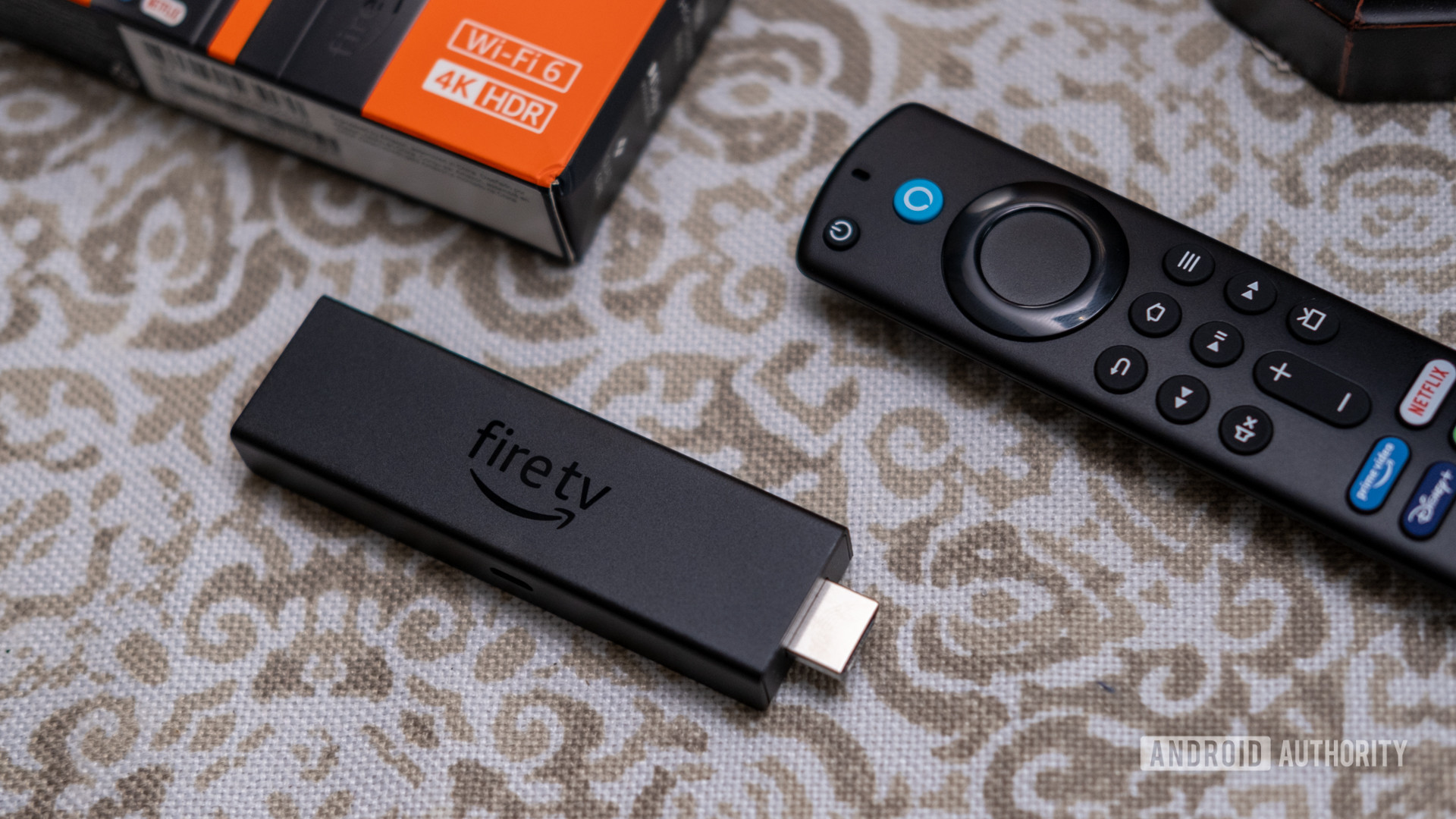
You might be wondering if a Chromecast dongle is mandatory for casting VLC to your TV. The good news is that many modern TVs come with built-in Chromecast support, which means VLC can detect it automatically when your TV is powered on. Alternatively, you can use an HDMI cable for a wired connection or stream to other compatible smart TV devices like Roku, Apple TV, or Amazon Fire TV.
Indeed, VLC Media Player extends its support for Google Cast. To cast from your device, ensure both your computer and Smart TV are connected to the same Wi-Fi network. Open VLC, play a video, navigate to the Playback menu, and select your Smart TV from the Renderer list.
iPhone or iPad users will also find it easy. Just make sure your Apple device and Apple TV are on the same Wi-Fi network. Open VLC, begin playing a video, tap the AirPlay icon, and select your Apple TV.
Lastly, if you're using the desktop version of VLC, note that there isn't a specific Cast button. However, you can still cast by selecting Renderer from the Playback menu. For mobile users, ensure you're using the latest version of VLC to access casting features smoothly.